TheAppQuarry is an independent mobile app comparison platform. We may earn a commission when you click through.
HyperBoost vs GFX Tool: Which Gaming Booster Actually Helps?
HyperBoost manages performance in real time, while GFX Tool focuses on manual settings. Compare features, platforms, limits, and value.
You're choosing between an automatic Android booster and a manual graphics utility. Here's what actually matters: HyperBoost tries to manage the whole gaming session, while GFX Tool gives you a settings checklist and leaves the changes to you.
That difference is easy to miss in app-store descriptions. HyperBoost is the broader companion; GFX Tool is the more transparent tool. Neither guarantees extra frames, and both deserve more scrutiny than their booster branding suggests.
Quick comparison
| Category | HyperBoost | GFX Tool |
|---|---|---|
| Platform | Android | iPhone and iPad listing |
| Main job | Game library, background cleanup, telemetry, performance controls | Manual resolution, FPS, graphics, style, and shadow presets |
| Automation | One-tap overdrive and background cleanup | Shows values to enter in the game |
| Price data | Not provided | Not provided |
| Best match | Android players who want one control hub | Players who prefer manual graphics tuning |
The hands-off Android control hub
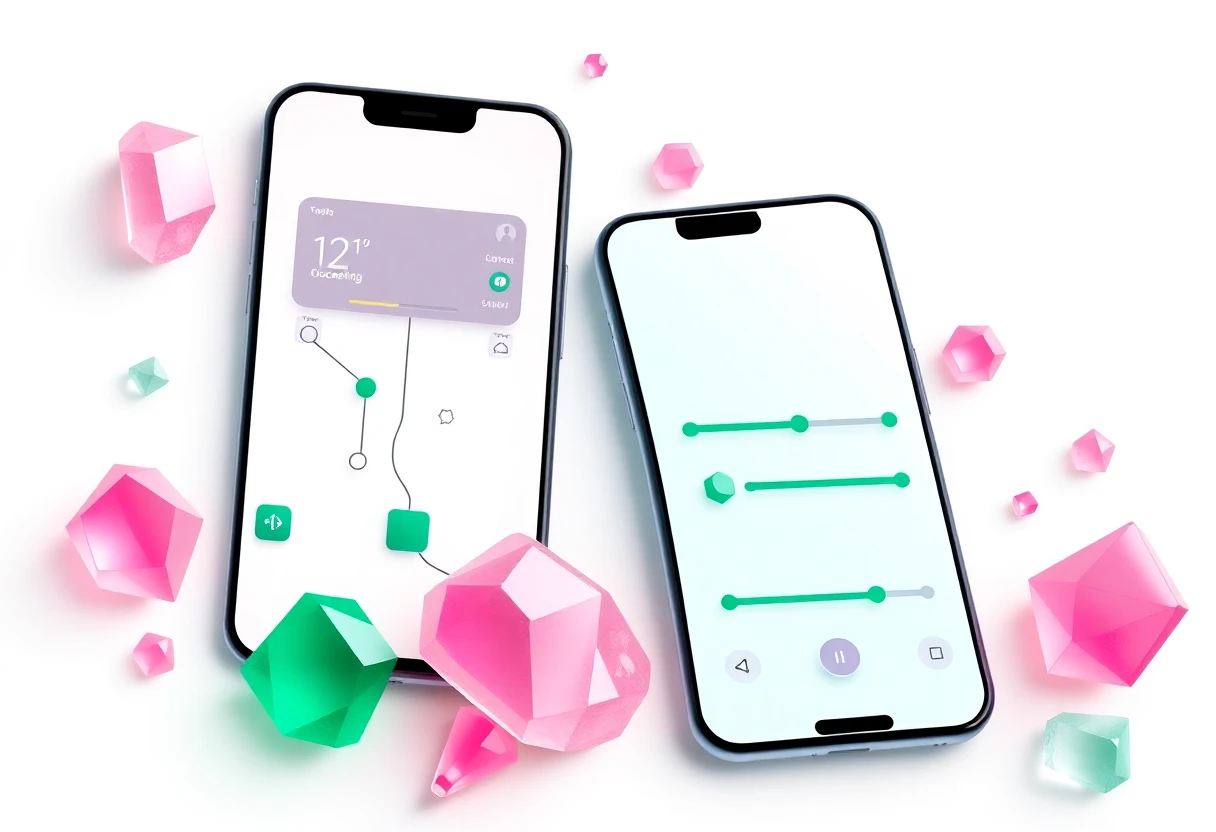
HyperBoost has the wider brief. Its listing combines a game library, one-tap performance controls, background-process cleanup, and real-time system telemetry. That makes it easier to understand as a gaming dashboard rather than a single-purpose graphics editor.
The limitation is equally important: the supplied listing does not provide a price, rating, download count, app size, permissions, or measured FPS improvement. Treat its performance language as a claim, not a benchmark. The useful part is the visibility into device behavior, especially during demanding battle royales, MOBAs, and graphics-heavy games.
HyperBoost covers more ground than GFX Tool: it organizes games, reports system telemetry, cleans background processes, and adds a one-tap overdrive mode. I would choose it for an Android player who wants fewer manual steps, but the missing rating, app size, permissions, and measured performance results make its Pro label impossible to verify. Compared with GFX Tool, convenience is the advantage; transparency is not.

Why the broader feature list is not automatically better
A booster cannot create cooling capacity or extra memory. Background cleanup may reduce competition for resources, but aggressive optimization can also interrupt notifications or close useful services. HyperBoost's real value is having controls and telemetry in one place, not a guaranteed speed increase.
That makes the app more interesting for players who regularly switch between several demanding titles. Someone who only needs to lower shadows in one game may find the extra dashboard unnecessary.
HyperBoost is the more ambitious find, but its claims need testing on your specific handset. The next pick takes the opposite route: fewer promises, more manual control.
Manual graphics tuning, with fewer hidden assumptions
GFX Tool is available through an Apple App Store listing for Pakistan and is described as free with in-app purchases. Its job is narrow: choose resolution, FPS, graphics quality, style, and shadows, then save a preset. The app shows the values to enter in the game's own graphics settings rather than modifying the game directly.
That last detail matters. GFX Tool is not a magic switch and does not appear to apply settings automatically. It is closer to a configuration companion. The listing also says it can help you check which games suit your device's memory, which is more practical than vague claims about making every game faster.
GFX Tool is the honest, narrow alternative: it lets you build presets for resolution, FPS, graphics, style, and shadows, then tells you what to change inside the game. Compared with HyperBoost, it demands more effort but makes fewer claims about automatic optimization. Pick it if you understand graphics settings and want repeatable profiles; skip it if you expect one tap to alter performance by itself.
Ease of use versus control
HyperBoost wins the first-launch experience because its game-library and overdrive approach is easier to grasp. GFX Tool wins for players who want to know exactly which variables they are changing. That distinction is useful on older hardware: reducing resolution or shadows can produce a more stable experience, but the visual compromise is yours to judge.
Platform availability also breaks the tie. HyperBoost is an Android app; GFX Tool appears on the iPhone and iPad store. They are not interchangeable downloads for the same device, so your handset decides the starting line.

What the overlooked alternatives reveal
The wider list contains several related tools, but they solve different problems. GFX Tool Master focuses on monitoring RAM, CPU and battery temperatures, battery level, storage, and refresh rate. That is useful diagnostic information, yet the supplied data does not show automatic optimization or a rating, so it is a monitoring companion rather than a direct rival to HyperBoost.
GFX Tool Master is the specialist pick for players who want to watch RAM, temperatures, battery, storage, and refresh rate while gaming. It is less ambitious than HyperBoost and less hands-on with graphics than GFX Tool, but that narrow focus may be exactly what helps diagnose heat or memory problems. The listing provides no rating, price, app size, or permissions, so this is a monitoring recommendation rather than a performance promise.

GFX Tool Master makes the comparison more useful because it exposes the missing question behind every booster claim: what is your device actually doing? If temperatures or RAM pressure are the problem, telemetry may help more than another one-tap optimization button.
GFX Tool Launcher & Optimizer moves back toward presets and convenience. Its listing names Performance, Balanced, Quality, and Ultra profiles, plus resolution, FPS, shadows, rendering quality, and a built-in booster. That is a broader workflow than the manual GFX Tool listing, but the available data still does not confirm automatic in-game changes or real-world frame gains.
GFX Tool Launcher & Optimizer sits between the two main contenders: it offers quick Performance, Balanced, Quality, and Ultra profiles while still exposing resolution, FPS, shadows, and rendering quality. Compared with GFX Tool, it sounds faster to configure; compared with HyperBoost, it remains more graphics-focused. The iPhone and iPad listing makes it relevant to Apple users, but no rating, price, size, or measured result is supplied.

One warning before you install any booster
None of the supplied listings gives enough evidence to call these apps proven frame-rate fixes. HyperBoost and GFX Tool Launcher & Optimizer use stronger optimization language, while GFX Tool explains its manual limits more plainly. That makes the less flashy description more credible, even if it is less exciting.
Check the official store listing before installing: HyperBoost on Google Play, GFX Tool on the App Store, and GFX Tool Launcher & Optimizer on the App Store. The listings are the right place to confirm current pricing, permissions, compatibility, and subscription details because those fields were not included in the supplied data.
The verdict
HyperBoost wins for Android players who manage several demanding games and want a single hub for launching, cleanup, and telemetry. Its broader toolkit gives it the edge over the manual GFX Tool, though the unverified performance claims keep this from being a blind recommendation.
GFX Tool wins for iPhone or iPad players who want direct control over resolution, FPS, shadows, and graphics quality. It is more limited, but that limitation is clear. Choose GFX Tool Master instead if diagnosis matters more than presets, especially when heat or memory pressure is the recurring problem.
Gaming companions are most useful when they explain the bottleneck instead of promising to erase it. For more under-the-radar finds across game codes, graphics tools, and mobile utilities, continue with 10 Underrated Gaming Companion Apps for Mobile Players.